Showing posts with label iPad. Show all posts

Screencasting for Teaching and Learning

With devices in the hands of so many students and teachers, I don't think screencasting and webcam recordings receive the credit these strategies deserve. In this post, I share a few favorite tools and how they can be used for both teaching and learning.

How can we use screencasts for teaching?

When I started creating videos for my classes, I only had an iPad. I found Show Me, which was an easy way to create tutorials, plus the videos could be viewed on various devices.

I didn't have the time to "flip" my entire class, so I started by creating tutorial videos for concepts where I knew the kids struggled. (After teaching the same subject for many years, you know the difficult topics!)


It took a while for me to get the hang of speaking and writing (and listening to the sound of my voice). I had to let go of the idea of perfect, beautiful videos...because they were not! But I soon achieved my goal of a 3-minute video taking no more than 5-minutes to record. The students appreciated the tutorials, and they seemed to prefer my videos over ones they found elsewhere online. 

(By the way, you can now record screencasts on your iPad using iOS 11, so an app may not even be necessary.)

For my work today, I could probably utilize screencasts in every single professional learning session. Content delivery can all be done with a video. (Same is true for classrooms, right?)

I'm slowly (eek!) adding a bit of webcam to my screencasts, and there are several easy tools for these videos.

I discovered the Soapbox Chrome Extension during an edcamp, and it allows you to switch between your webcam, screen, or both.

I shared Loom (and WebCam Record) in this post about Quick Wins. All of these tools require very little set-up, and the free plans are sufficient for my needs.

When beginning your screencast journey, start small and go for the product, rather than perfection. Get a video or screencast out there to help students, rather than spending too much time editing, doing re-takes, creating graphics and transitions.

How can we use screen-recordings for students and learning? 

Instead of standing up giving full presentations, students could record screencasts of their work, and partners could provide feedback on each other's work before it is submitted to the teacher. (Save class time!)

Students could explain (justify, question) anything on a webpage...vocabulary, steps for solving a problem, what a particular reading passage means...

Teachers could provide slides (information) and students could create a screencast to develop predictions, make inferences, or draw conclusions about the content.
  • In a math session, I provided about 15 slides with different graphs, charts, and data points, and I asked the teachers to choose 2-3 slides to discuss. See my samples below. I used Screencastify and Nimbus for the recording tools.


I know a lot of people love using Screencastify because it saves to Google Drive; however, it requires quite a bit of set-up.

You really don't need any fancy tools or programs, and if students have a device with a camera, they can take a video of them talking about their work or project. Keep it simple!

If you have Chromebooks, check out this post from Richard Byrne and Free Tech For Teachers where he shares 7 screencasting tools that work on Chromebooks. (Soapbox, Loom, Screencastify, and Nimbus are all included.)

Do you have any favorite tools or suggestions for screencasts? How can you use screencasts for teaching and learning?

Share:

Flipping Over Made4Math


Happy (belated) birthday, #Made4Math!   Because of #Made4Math, how many teachers progressed from simply reading posts to tweeting and/or creating blogs? (me!)  And because of these amazing resources, how many different teachers tried a new idea, changed/improved a lesson, collaborated more with colleagues, read a new book, or took a risk?

One of the popular summer reads is Teacher Like a Pirate, so I decided #Made4Math = a treasure hunt and a chest of gold.

Because of #Made4Math, my blog list exploded! Each time I find a new blog, it's a treasure hunt of additional links, pages, tabs, downloads, and ideas.  Because of #Made4Math, I learned a bit about ColourLovers and creating graphics, Vistaprint, and how to cut composition notebooks.  Bloggers shared everything from posters, to organizing ideas, to 1st day activities.  I work with all of our teachers and I help plan our staff development, so I frequently share your posts with our faculty.  The assessment ideas, such as this post (which inspired me to buy Embedded Formative Assessment and to use similar exit tickets) and the video blog on post-it exit tickets were both favorite blogs for many people at my school.

Because I now have a giant treasure chest of gold ideas, I need a better way to organize all of my blog reads.  Since I've had my iPad, I've used Mr. Reader, which I love, and I'm so happy it now syncs with Feedly.  I'm also using Pocket, but I am still not doing a good job of organizing favorites.  I also tried Pinterest and keeping lists on Google documents, but those options were not working for me either.

Enter Flipboard, which is making me very happy.  I'm not using it for my blog feeds (or Twitter or Facebook); instead, I'm using it as a way to organize my favorite posts and to find new content.  I created quite a few different "magazines," so when I find something I love, I add articles to the appropriate place.

For this week's #Made4Math, I created "Math Goodness," so if you have the Flipboard app, you are welcome to browse my magazine.  If you haven't tried Flipboard yet, it is available on iOS and Android devices.  I learned about it and watched the videos here and on the Flipboard site, and it is very easy to set-up and use.  For my math magazine, I included some of the links mentioned above, but I also tried to add quite a few posts that weren't necessarily math but could be easily adapted to math classrooms.  (Next I need to create a magazine just for assessment ideas!)

For me, one advantage of this format is that I can preview most of the articles.  "Academic" articles do not always include images, so Pinterest isn't the best option for these types of posts.  (And I'm a "words" person, rather than a visual person, so I guess that's why it appeals to me.)


It is easy to share articles via Flipboard, and you can also collaborate on magazines.  If you're still looking for a Google Reader replacement, you can use Flipboard for reading blogs and for your social network feeds.


I have flipped over all of the wonderful new resources I found this year, so thank you #Made4Math and the math blogging community for being such a treasure trove of ideas!  Thank you for encouraging me to share and learn!
Share:

Made4Math - Digital Word Walls

I've really missed blogging and participating in #Made4Math, so after reading so many wonderful ideas over the past few months, I'm happy to be able to contribute to this week's collection.


Several years ago, we jumped on the "Word Wall" bandwagon, and teachers in all content areas learned the importance of vocabulary building, displaying vocabulary, and actively using their word walls.

Had to throw in an English teacher's example, too! 

Fast forward several years, and we're now in the digital age.  One of our junior high teachers, Omar P., who teaches at a technology magnet school and who has created this fantastic informational site, led us into the 21st century with his idea of digital word walls.  (His site includes informational videos, app reviews, and presentations, and his work is helping our entire district!)

At a recent staff development, Omar shared his ideas and how he used his digital word walls, so I created one for my class and wanted to share this great strategy.

Instead of posting words/pictures/diagrams on a bulletin board, the same types of images are stored in folders on your iPad or computer.  Using the slideshow option, you can project the pictures as students are entering the classroom, while they're working on an activity, or during tutoring time.

I created my pictures using screen shots of handwritten notes, of Keynote slides, and of slides using a presentation app called Haiku deck.  I also plan to take pictures of the students' work and add those slides to the folder.  Omar has more iPads in his classroom, so he has had students create word walls using Keynote.  You could also find free images online for additional pictures or backgrounds.
Made using the Haiku deck app


I also included a few slides that were quotes or reminders about strategies for working these problems.


Our test is this week, so for the next few days, I plan to have these slides showing as the students enter the room.  (If you want to see the other slides, my trig identity folder is here.  I just noticed that the Haiku deck app provided a background that misspelled "adjacent," so I'm not too happy about that, but other than that, the slides were pretty and the app was easy to use.)  

I love the fact that these folders of pictures can be saved, changed, and shared.  Teachers and students could collaborate on unit folders, share photos, and update the words/images each year.  As we're reviewing for finals and preparing for other tests, we'll have these folders of pictures easily available and ready to go.  If you would like more information, Omar has a video explanation here about how he has used the digital word wall in his classroom.

Do you have a word wall in your classroom?  How do you use your word wall?  How do you reinforce vocabulary in your classroom?
Share:

Seating Charts are Now a Breeze!

This post probably should be a "My Favorite Friday" post, but since I'm not starting it until Sunday night, I'll add it to "Made4Math!"  (I finally had a chance to catch up on great blogs from so many people!  What a fabulous way to spend a few hours this afternoon.)


I used the same (ancient) computerized seating chart program for many years, but alas, it no longer worked on Windows 7.  Thanks to one of our math teachers, many of us are now using Smart Seat, and we are all loving this app!  (We agree that it was well worth $3.99.)


Smart Seat is strictly a seating chart/attendance app, but you may also make notes on each student.  

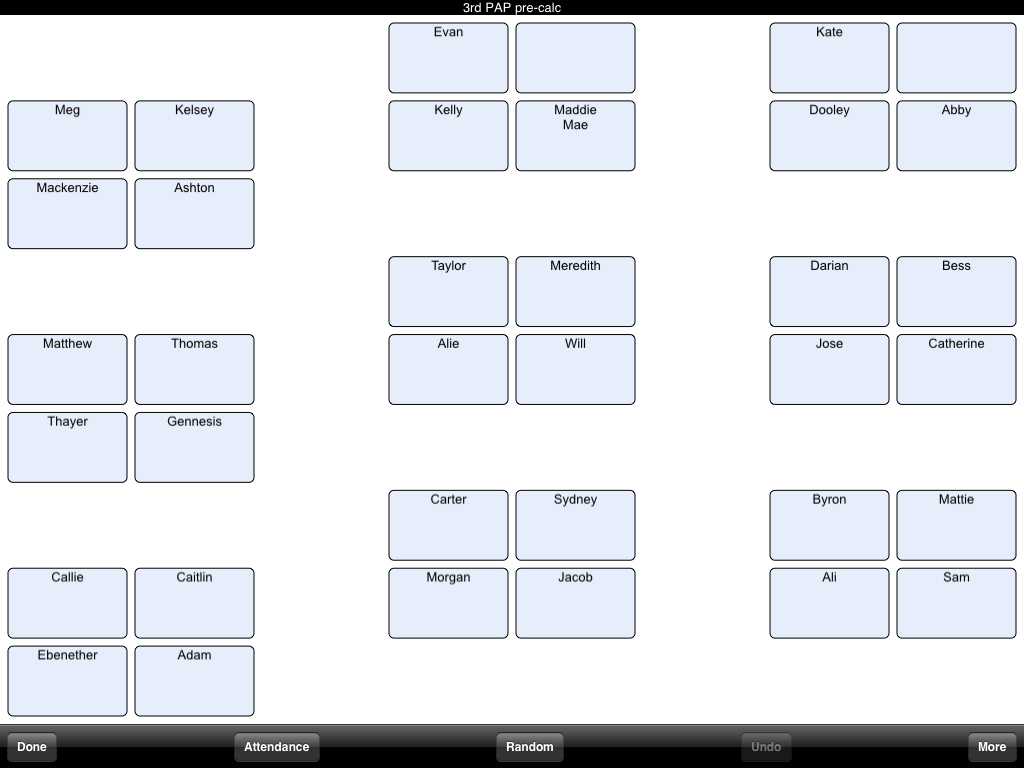
The app allows you to easily change room layouts, and here's a screen shot of my class grouped by "tables."  For the display, I can choose to include first names, first and last names, or first names and pictures.  


Here's a sample class of rows, and I included a couple of pictures for demo purposes only.  (My cat didn't mind posing for a picture!)


You may also add icons to each name to help create an instructional seating chart.  Another cool features is the "Random" button, which provides an in-app random name generator.  The students you have called on are highlighted until you click "Done," so you know who has participated.


I imported all of my students' names using a .txt file, and it was a very simple process.  There are a few other options to change the text size, orientation, and exporting features.  You may save and print each chart as a PDF.


My friend Laura contacted the app developer a couple times, and they were very helpful and immediately responded to her questions, so that's another plus for me. 

To change seats, just hold and drag a student's name to a new location!  There is also an option to scramble all seats to quickly create a new, random seating chart.

I practiced with the Teacherkit app this summer, which also includes a grade book feature, but as of now, I still prefer Smart Seat.  (Teacherkit is free, though!)  

Which teacher productivity apps do you love?  

Have a great week!


Share:

My Favorite Friday Apps


Happy Friday!  I can't wait to see what is in store for today's learning, and I'm looking forward to all of the Favorites!

For today's Friday favorite, I'm sharing two of my favorite apps of the summer.  With recent bond money, our district has provided iPads to teachers and classrooms (not 1:1 but to use for stations or sharing across departments) so I have spent the summer playing, learning, and searching for apps.

Side-note: next week is our district's Summer Leadership Conference, and schools "volunteered" to make centerpieces for the conference.  Instead of reading Favorite Friday posts this morning, guess who will be working on a centerpiece with the theme, "There's an app for that?" :)

If you are an experienced iPad user, I'm certain you already know about Zite, but it was a fun find for me, and I have used it almost every day this summer.


Zite is a personalized "magazine" creator.  It's free, and it is available for iPhone, iPad, and Android phones.  The program analyzes your Google reader and Twitter feeds and "chooses" topics based on your interests.  You may also select other subjects that interest you, and then the app creates pages of articles based on your topic choices.  Furthermore, you may rate the articles (thumbs up or down) so your magazine becomes more personalized as you rate more articles.  If you want to save the article, you may email it, tweet it, save it to Evernote, etc. Whenever I have a spare moment, I check out Zite and read an article or two, which also leads to new great adds to my Google reader.

My other find is a daily, free app curator, called AppsGoneFree.  Every morning, I receive a notification when "Today's Apps are Now Available," and it's fun wondering what new apps I will discover.


Each day, there are 7-13 free apps, and the categories vary wildly but always include some games.  The reviews include ratings, descriptions, and screen shots, just like iTunes, and a link takes you directly to the App Store.  The description also includes if the app is for the iPhone, iPad, or Universal.  The app is optimized for the iPhone, but I also have it on my iPad so I can easily download new finds in both places.  From this app, I have downloaded educational apps, games, yoga, math-y apps, and I have shared countless apps with friends.  I do not find something every day, but I have downloaded at least one new app a week. And since we will have some iPads in all content areas, it has been fun looking for apps for other teachers, subject areas, and students.

Between my iPad and Twitter and all of these great new blogs, I am even more addicted to technology.  Fun times!

By the way, what are your favorite apps?
Share: