Showing posts with label technology. Show all posts

Purposeful PD: Timing is Everything

Because of the pandemic and all of the virtual learning experiences, I feel that one of the most important questions I've asked this year is "What's the best use of our synchronous time?" This question is one that I will keep at the forefront of my brain post-pandemic, too.

I don't often share specific tools here, but one of my favorite finds during the pandemic is the Chrome extension called Slides Timer. This extension creates a minimal count down, count up, or current time on Google Slides. I can change the fonts, sizes, and locations, so the timer matches my presentation, and it's very unobtrusive. 

So that extension sounds fine, and using timers is a good productivity tip, but after reflecting and chatting with friends, those simple timers are a whole lot more. 

Generous Authority

I've written multiple times about the book The Art of Gathering by Priya Parker, and one of the chapters that really stretched my thinking was "Don't be a Chill Host." Previously, I wanted my sessions to be conversational, more informal, and laid back. (oops!) Rather than chill, Priya uses the phrase generous authority to describe the hosting goal. What I've learned during the pandemic (and after participating in many webinars) is that timers help me achieve a bit more generous authority.

"Purposeful PD, Timing is everything" and a yellow circle with an hour glass icon in the center; right side, top: icon of person pointing at screen "for the presenter," underneath are 5 icons to represent an audience, "for the audience"
Timers keep us all on track!

Timers keep me on track.

Because I constantly remind myself "What's the best use of synchronous time?" and because the professional learning sessions I facilitate are now typically 1-hour or less, rather than a 3- or 6-hour session, every single minute counts. I admit I can talk a bit too long, especially when chatting about a topic I love, so if I add a timer to one of my "teach-piece" slides, it is a prominent reminder for me to not ramble on about my subject.

My friend Laura and I co-facilitated a particular session, and we had one bit of input where we provided exactly 5-minutes of teaching, so we used Slides Timer. We each shared for about 2.5 minutes and moved on. The timer definitely kept me on track, and in a 50-minute webinar, sticking to that tight timing allowed us to accomplish all of our session goals. 

Timers keep participants on track.

Another component of generous authority is to protect and equalize your guests, or in my case, session participants. If I want to call on three participants from the group discussion, and each person has 1-minute to speak, a timer is important. (Has anyone else been in a webinar where 1-2 people dominate the conversation?) For this example, I would create 3 separate slides, each with a 1-minute timer. The timers help protect the "guests" from overly-chatty participants.

If I want each person to give a 30-second introduction, I would create a Slide with a 30-second timer and duplicate it for all participants. Now, all participants are equalized and have that 30-seconds timer and a visible cue when their time is up.

If I want participants to spend 3-minutes reflecting and planning next steps, I add a timer to the slides. If we're taking a 5-minute stretch break, I add a timer to the slides. The participants can check their own work and progress, and a visible timer on the screen really helps in a fast-paced session.

Reducing Cognitive Load

My friend Dede recently shared the brilliant insight that using Slides Timer reduces the cognitive load for both her and her session participants. 🤯 For one of her highly interactive, 2-day, face-to-face session, Dede had Slides Timers throughout her presentation, and she always had them in the same place on her Slides. Her session had many group activities, each with a different length of time. So instead of looking for her phone each time, remembering to set the timer, and setting a new time length, the timers were built into the slides, so that was one less thing she, as the facilitator, had to worry about!

She said she saw the participants looking up at the screen throughout the activities, checking how much time they had left for their tasks. They didn't have to assign a time-keeper role, they didn't need to check the times on the phone; they just looked at the presentation screen. It was one less thing for the participants to worry about, too! In addition, I'm sure it was a way to build in trust because if Dede said the participants had 10 minutes to work on a task, they knew she would give them precisely 10 minutes.

Other Tips for the Slides Timer

Laura, Dede, and I have a few pro tips about using Slides Timer:
  • Laura and I duplicate our Slides and add the actual timer, <<7:00->> for example, on the second slide. The timer begins as soon as I advance to that timer Slide, so I set up the activity on the first slide, and as the activity begins, I advance to the next Slide with the actual timer. Participants can still see all of the directions and info, and I add the timer to any spare space on the Slide.
  • Dede's tip, especially if there are a lot of activities, all with different time lengths, is to add a tiny reminder on the first slide of the upcoming activity length to reduce cognitive load. "For the next activity, you'll have [checks the bottom of the slide] 7 minutes to complete the tasks listed..."
Slide 1: tiny reminder at the bottom of the slide

Slide 2: timer in edit mode 


Slide 2: timer in present mode
  • The Slides Timer count up/down begins as soon as I advance the Slide. To reset the timer, I have to escape the presentation, and then present again.
  • As far as I can tell, the Slides Timer extension does not work in Slides preview mode or "Publish to the web" mode.  
  • Because of the << >> symbols and other formatting, it's a challenge to get the timer perfectly aligned. I've only used the timer in a text box, but I recently read that adding the timer to a shape works, so that might help with the formatting. 
  • The timer does not include sound; it's just a visual reminder.

There are many ways to include and embed timers, but the Slides Timer extension is my current favorite since I use Google Slides for my presentations. In what other ways can we use Slides Timer to make the best use of our synchronous time, host with generous authority, and reduce cognitive load? It's a true win for designing professional learning when a small Chrome extension, like Slides Timer, can truly enhance my purposeful PD!

Share:

Are you using these tools to add audio in your class?

Neon sign that reads "You are what you listen to"
Photo by Mohammad Metri on Unsplash

Podcasts for Learning

Last year, I wrote about my Podcast Love and my podcast routines, but this summer, I presented Podcasts for Learning multiple times, so I wanted to share a few additional ideas about using audio and podcasts in the classroom.

Finding Audio

During my sessions, I share two tools to help find podcasts: Listen Notes and ListenWise.

Listen Notes is a search engine for podcasts, plus it allows you to clip podcasts and create podcast playlists. Here's a clip describing what Listen Notes can do (from our @DigLearnRadio podcast!) and here's a playlist of our episodes about coaching. I also just learned that your can add this playlist and all episodes into your podcast player. Use this feature to create a podcast choice board, perhaps?

ListenWise is a tool from NPR that has "curriculum-aligned podcasts with accompanying teacher resources." The audio clips can be filtered for content area and grade level (5 - 12). For the free version, you get the audio clip, listening comprehension questions, and a Socrative import quiz code.

Recording Audio

In my session, I joke that podcasts fall on a continuum from "Kathryn talks to pre-schoolers" --> This American Life. Students (or you) can record quick, unedited audio clips OR you can create full-blown podcasts that can be shared with others.

Creating audio can be as simple as using a recording app on your phone. Getting the recording to the teacher is sometimes a challenge, but educators in my sessions suggested email, Google Classroom, and a shared Google folder. 

I discovered the Online Voice Recorder on this post from Free Tech 4 Teachers, and it's a super simple way to record (and do a bit of editing.) Once you record, you save the file, and you still need to get that "published" in some way. When the Insert --> Audio feature in Google Slides is fully functional (rollout paused on 7/24/19) that may provide an easy way to collaborate and share, but until then... Here's my sample slide with a recording from the Online Voice Recorder inserted into Google Slides. (I have the Insert --> Audio feature in only one of my personal Gmail accounts, but not my Google for Education accounts.)


Synth is a relatively new tool for recording audio, and I've tried it in a few of my sessions with some success. It's still in beta form, and I think it's a bit challenging to get it going, but the teachers in my sessions this week saw a lot of potential. There are a lot of features educators loved about it, such as the time constraints, transcriptions, and the option to include text comments. It also embeds beautifully into a website, its target audience is educators, and you can create "closed" classrooms. The audio below is from our session...all in unedited format, so you get bonus content of all kinds of background noise. 😉


Within this session, I also share Anchor for creating podcasts. I keep trying to get more people to share a recording in Anchor, but its entry point is not quite as simple. For educators who want to create their own podcast, and for teachers whose students are >13 years old, it does seem like the easiest platform to use for creating and publishing to the world.

Using Anchor, I collected all of the audio from this week's sessions and created a new "podcast" of all shared ideas.


Sharing Audio

On the #mfltwitteratipodcast, the hosts shared a hack of how to embed podcast players into a Wakelet collection. Using links from Spotify, you tweak the code to create a collection where the specific episode plays within the Wakelet.

For my recent Podcasts for Learning session, I decided to keep track of what I listened to and learned during a single week, and I added all of my notes to this collection. Here's my Wakelet without the hack (podcasts open in a new tab) and with the hack (players are embedded, also shown at the bottom of the post). The first ISTE Standard for Educators is Learner, and I definitely use podcasts to learn from and improve my practice!

If you want to create a podcast choice board for your students, this trick might be a great way to share the collection. You could also us this hack to create your "Podcast Tasting" PD session, as described by my PLN friend Meredith Akers.

Even More

Within the session, we briefly discussed creating more structured, polished podcasts, and I shared resources from the EduBlogger, ListenWise, and NPR about creating podcasts in classrooms.

Any other tools for recording audio? Any other favorite podcasts? I share my finds using #R10PodPD and would love to have more suggestions!

Listening and learning...


Check out my Wakelet with embedded podcast episodes!


Share:

Unstuck

A bit of voice and choice...


I update this blog sporadically, at best, and I know I never wake up in the middle of the night excited to write a blog post. This morning, I started brainstorming a bit and I thought that adding a little bit of audio might motivate me to become unstuck about my blogging.

I was working on an upcoming session about podcasting, and I wanted to try the Anchor app. The website declares, "It's the easiest way to start a podcast. Ever." I knew other educators used Anchor for their podcasts, so I wanted to include this tool in my session. I decided as a model, I could try Anchor for this blog post.

In our sessions, we share the importance of providing voice and choice: to allow students to access the content or to share their work through audio, video, or text or a variety of mediums. We provide a plethora of sources and allow participants time to explore the readings and tools of their choice. That's what led me to wonder: is there a way I can add a little bit of choice on this blog? Would this choice in platform help me become unstuck with my blogging efforts?

It took me a little bit of time to create a logo for Anchor, and it's not great, but if I wanted to create audio connected to my blog, at least I already had a name and colors. Since my colleagues and I already create our Digital Learning Radio podcast, I was at least somewhat familiar with the other podcast requirements.

We'll see how this works and how often I include a little bit of audio on the posts...but for now, this idea inspired me to jump out of bed on a summer Saturday morning. I'm a little less stuck now, and I am motivated to try something new, to explore new tools, and to share content in new ways.

Thanks for listening! 


Share:

Screencasting for Teaching and Learning

With devices in the hands of so many students and teachers, I don't think screencasting and webcam recordings receive the credit these strategies deserve. In this post, I share a few favorite tools and how they can be used for both teaching and learning.

How can we use screencasts for teaching?

When I started creating videos for my classes, I only had an iPad. I found Show Me, which was an easy way to create tutorials, plus the videos could be viewed on various devices.

I didn't have the time to "flip" my entire class, so I started by creating tutorial videos for concepts where I knew the kids struggled. (After teaching the same subject for many years, you know the difficult topics!)


It took a while for me to get the hang of speaking and writing (and listening to the sound of my voice). I had to let go of the idea of perfect, beautiful videos...because they were not! But I soon achieved my goal of a 3-minute video taking no more than 5-minutes to record. The students appreciated the tutorials, and they seemed to prefer my videos over ones they found elsewhere online. 

(By the way, you can now record screencasts on your iPad using iOS 11, so an app may not even be necessary.)

For my work today, I could probably utilize screencasts in every single professional learning session. Content delivery can all be done with a video. (Same is true for classrooms, right?)

I'm slowly (eek!) adding a bit of webcam to my screencasts, and there are several easy tools for these videos.

I discovered the Soapbox Chrome Extension during an edcamp, and it allows you to switch between your webcam, screen, or both.


I shared Loom (and WebCam Record) in this post about Quick Wins. All of these tools require very little set-up, and the free plans are sufficient for my needs.

When beginning your screencast journey, start small and go for the product, rather than perfection. Get a video or screencast out there to help students, rather than spending too much time editing, doing re-takes, creating graphics and transitions.

How can we use screen-recordings for students and learning? 

Instead of standing up giving full presentations, students could record screencasts of their work, and partners could provide feedback on each other's work before it is submitted to the teacher. (Save class time!)

Students could explain (justify, question) anything on a webpage...vocabulary, steps for solving a problem, what a particular reading passage means...

Teachers could provide slides (information) and students could create a screencast to develop predictions, make inferences, or draw conclusions about the content.
  • In a math session, I provided about 15 slides with different graphs, charts, and data points, and I asked the teachers to choose 2-3 slides to discuss. See my samples below. I used Screencastify and Nimbus for the recording tools.


I know a lot of people love using Screencastify because it saves to Google Drive; however, it requires quite a bit of set-up.

You really don't need any fancy tools or programs, and if students have a device with a camera, they can take a video of them talking about their work or project. Keep it simple!

If you have Chromebooks, check out this post from Richard Byrne and Free Tech For Teachers where he shares 7 screencasting tools that work on Chromebooks. (Soapbox, Loom, Screencastify, and Nimbus are all included.)

Do you have any favorite tools or suggestions for screencasts? How can you use screencasts for teaching and learning?

Share:

Quick Wins

One of our vendors (Clarity BrightBytes) calls strategies "Quick Wins" and "Game Changers,"  and my teammates and I enjoy using those same phrases in our work. Colleagues request my go-to tools, so I started a list of my own quick wins. These ideas require only one-click, little set-up, or very low prep.

You can use four out of five of these quick wins for feedback or formative assessment. Three of these tools allow you to include video responses in your work.

Fist-to-Five 

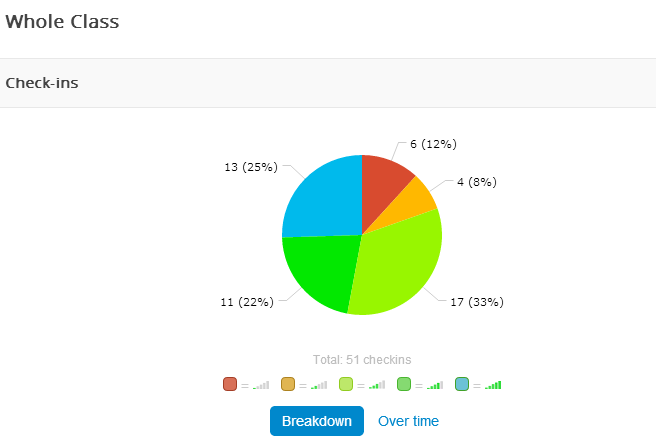
I shared this strategy in an earlier post, and now I discovered that using this non-verbal assessment is as effective with adults. As shared in this video, educators can use fist-to-five for both social and academic check-ins, pre-assessments, quick exit polls, etc. My usual questions are:

  • How are you feeling today? (0 - 5 = worst day ever --> lovin' life!)
  • How do you feel about technology in general? (what's a smartphone --> I love all gadgets)
  • For Google training: How do you feel about Google apps?
  • What do you know about differentiated instruction?
When using fist-to-five with my students, 5 = I can teach someone else. After a few uses of this strategy, the kids start using the same language to assess themselves. Win!

As with all formative assessments, the key is to use the "data" to make instructional decisions. When my training session consists of participants who rate themselves as 4-5 with technology, I can move a little more quickly with the tech. The session attendees are more likely to click and experiment with the tools with very little prompting.

First-to-five is a quick win because it requires no prep, it can be used at any time, it's low risk, and it provides me with good information.

Google Docs Quick Create

This Chrome Extension allows you to create a new Google Doc, Sheet, Presentation, Drawing, or Form with a single click. I don't need to go to my Drive or type anything in the Omnibox...simply click and start a new document. One click is definitely a quick win!

WebCam Record

Alice Keeler shares a lot of information about the importance of immediate, specific feedback. She created this Chrome Extension for video feedback, and her tools are so efficient! Click the extension, click start, and the video immediately begins recording. You may record up to 90-seconds. Once you stop recording, the video saves in a folder in your Google Drive, and the video's shortened URL is automatically copied to your clipboard. Here's my sample video, and here are Alice's posts and suggestions about using her Webcam Record Chrome Extension. One-click + an efficient feedback tool = quick win! 

Loom

If you need longer videos, check out Loom. There are a lot of screencasting tools available, but this (new-to-me) Chrome Extension takes one click to start and stop, requires very little set-up, and includes these extra features:
  • You can add timestamps.
  • There is a text box underneath your video.
  • You can add comments that are time stamped.
  • You can set permissions for viewing the video (with a password or with a link).
  • You can choose where to position your webcam "circle," the size of the video-cam, or to have no video at all!
I used Loom for this quick screencast about another tool, but if you watch on Loom (click the icon in the upper right corner) you can see the video, comments, and text box.


Flipgrid

Last year's tool with the most buzz was Flipgrid. With their amount of social media interactions and responses to this product, the company built an enthusiastic community of educators. There are now more features and options for set-up, but Flipgrid is definitely a quick win because it is so easy for the user; click the green button and start recording! Flipgrid has a large number of possibilities for classroom and school use, such as introductions, reflections, and formative assessments. A colleague has used Flipgrid with the littles (PK-K students) and I ask even the most tech-timid to try Flipgrid...and all groups experience success with this tool.

Time is a precious resource for educators, so I'm always eager to share ways we can save even a few seconds. When a simple strategy or tool provides a lot of bang for your buck, it definitely needs to be shared! What are your favorite quick-wins?

Always learning...
Share:

Podcast Love

I'm kind of a podcast rookie (I missed the whole Serial excitement) but now that my work often includes quality time in my car, listening may be one of my favorite ways to learn. I recently noticed how often "I heard in a podcast..." creeps into my conversations!

I used to watch the news before work, but now I keep a podcast playing during my morning routines. I know listening and learning is a much more positive way to begin the day! At home, I sometimes use a small Bluetooth speaker that connects to my phone; otherwise, I prop up my phone in the kitchen window and listen while preparing meals or doing chores.

I subscribe to a lot of podcasts, and I keep others in my feed in case I run out of content. My rule is to stop listening if I'm not enjoying the episode. (I often feel like I have to finish that book, but it's easy for me to delete a podcast that I'm not enjoying!)

My favorite, non-educator specific podcasts:


  • For positivity and self-improvement, my top choice is Happier by Gretchen Rubin. Gretchen and her sister Liz Craft co-host this podcast, and I love their conversations, the podcast structure, their rapport, and even their word choices! (You can tell they're both writers!) The length of time is perfect for me (30 - 45 minutes) and I know I can finish an episode before I leave for work. It makes me happier to wake up on Wednesday mornings and anticipate a new episode! And understanding Gretchen's Four Tendencies framework is so useful for working with students and colleagues.
  • Gayle Allen's interviews on Curious Minds are thought-provoking and interesting. I want to know more, read the author's works, and keep learning! I realize I'm already biased because I'm such a fan of Dr. Allen's book, The New Pillars of Modern Teaching (see my post about it) but she is an incredible interviewer, and she is so knowledgeable about her subject's work; you can tell all parties enjoy the conversations.
  • Note to Self, "the tech show about being human," is relevant to my job, since I'm a Digital Learning Consultant, but the host Manoush Zomorodi provides us with information and ideas to help us control our technology, rather than the other way around. She creates one big listener challenge a year and follows up with research, solutions, and predictions. The results from her Bored and Brilliant project even became a TED talk and a book!
  • One of the reasons that I enjoy Pop Culture Happy Hour is that it is pure brain candy. The roundtable discussions are lively, fun, and interesting, and I hear a lot of fantastic book, TV, and movie recommendations...but I doubt I'll use this information during one of my PD sessions. 
For educator specific, my go-to's are these very popular podcasts: Cult of Pedagogy, Google Teacher Tribe, and 10-Minute Teacher with Vicki Davis. I also can't leave out my team's podcast, Digital Learning Radio! (Check out this episode where we interview Gayle Allen.)

For those who don't (YET) listen to podcasts, this video with Ira Glass and his friend Mary is priceless! They share and show how to listen to a podcast:

Of course, This American Life is the premier podcast, and I bet many podcast hosts secretly aspire to be like Ira. :)

For listening, I use the Overcast app, and I like how easy it is to share an episode at a particular minute.

I know audio isn't for everyone, but I find that podcasts meet my learning preferences and they're easy to share. For my professional learning sessions, I try to play at least a minute or two of audio, and I now add podcasts (or particular episodes) to my resource pages.

I'm always on the lookout for recommendations, so what are your favorite podcasts? Do you use podcasts for learning?
Share:

New Pillars

May I make a book recommendation? My favorite edu-read of the past year is The New Pillars of Modern Teaching by Gayle Allen, and this book has truly changed the way I think about teaching and learning.

In the book, Dr. Allen shares the reasons why educators must shift from the old pillars (instruction, curriculum, assessment) to the new pillars of design, curation, and feedback. The three primary chapters share how we transition from the old to the new pillar, give an example of that pillar in the "real world," provide what it looks like for students and what it looks like for educators. The book is tiny (44 pages!) but packs such a powerful punch that I keep it with me at all times and constantly refer to it. My colleagues and I embed the new pillars in almost every professional learning session we provide, and we even created sessions on each of the three individual pillars!

#booksnap from the Introduction
At first glance, the book does not look like a technology book, but oh yes, it's all about WHY we must embrace technology for our teaching and learning. The book is all about empowering learners, whether you're a student or teacher, and it helps us understand the impact of living in a time of information abundance. (This idea supports a favorite quote from Alice Keeler, "Teach like Google and YouTube exist!") Teachers no longer need to be "the funnel and the filter" of the learning, but Dr. Allen says the change doesn't diminish teachers' roles, it enhances it! In each of the chapters, she reminds educators that we must experience this type of learning ourselves (with the technology) if we are to help our students own their own learning. The book includes tech tool recommendations, but of course, it's not all about the technology.

The other thing I love about the book is that I get the feeling that Dr. Allen truly understands educators' lives: our time constraints, our school/district mandates, and trying to keep up with it all. She knows we're trying to move mountains, so the book is filled with reminders such as, "It's not important which technology we choose--just that it helps us achieve our goals." And "the key is to start small..." She provides choices, helps us understand our preferences, and presents compelling reasons for us to transition to the new pillars. And by the way, chapter 5 is Iteration and Failing Fast to Learn, so she includes ideas related to #growthmindset, too! "The key is to get past perfection paralysis."

Commercial: by the way, my colleagues and I are hosting our second free, online book study over The New Pillars, and you're welcome to join us on this journey! Beginning October 17, 2017, we'll explore one chapter per week, and share ideas with a podcast, learning tasks, and Twitter discussions.

Second commercial: Dr. Allen's podcast, Curious Minds, is one of my favorites. Her interviews are outstanding, and her depth of knowledge and questions to the authors are so interesting that I want to read every one of the featured books! She is also extremely active on Twitter and shares fascinating posts, research, and ideas.

Have I piqued your interest? Have you already read The New Pillars of Modern Teaching? Do you have another book that has completely transformed your ideas about teaching and learning in the digital age?
Share:

Going to a Conference!


Letter G in my #ReflectiveTeacher journey...

Last week, I found this blog post from Imagine Easy Solutions that encouraged educators to blog during their conference sessions...but I forgot about it until now, so I will start tomorrow. I didn't arrive in Austin until almost noon today, and I only attended a couple sessions, so perhaps an end-of-day reflection is OK for today!


Take-Aways:

  • #TCEA16 will probably trend all week. I was almost overwhelmed yesterday (before I even arrived at the conference) trying to keep up with the flood of ideas, posts, and resources. Following giant conference hashtags is now at the top of my to-do list. I can't believe how much I'm learning through Twitter.
  • TCEA organizers have their conference down to a fine science, and I appreciate all of the time and work it must take to pull off an event of this magnitude! Check-in was a breeze, the conference app is constantly updated, and there are signs, marquees, and volunteers everywhere, so my questions are already answered!
  • Presenters: thank you for providing access to your handouts! If we cannot get into your session, your notes, sites, or presentations are giant birthday gifts, waiting to be unwrapped and explored. (I just need more time to look at the 500+ links!)
  • It is hard to attend a ginormous conference by yourself. This year is so much better, though, because I have made so many connections during my time at my new job, so I keep running into people I know (or who know me!) Whether it's in the hallway or in the fast-moving Twitter stream, it's awesome to be a bit more connected this year. 
  • ...but attending a ginormous conference can also be overwhelming, so quiet time at the end of the day is a must for me!
  • I didn't put in a proposal to present this year, and I kind of miss presenting, but I must admit, it is more relaxing to "just" be a learner and participant.
  • At a technology conference, so many people are glued to their devices, so I always appreciate when the presenter prompts us to "turn to your neighbor and share..." In my opinion, one of the best parts of a conference is making connections, and that's a bit difficult when you're constantly looking at a screen.
  • I am such a math-person (linear, concrete-sequential, etc.) and I have planned PD sessions for many years, so I prefer presentations that are super-organized, purposeful, and thoughtful. Your slides don't have to be designed by a graphic artist, but please follow some kind of outline, provide an essential question, or explain the session goals.
  • I caught a Google Hangout (on Air) reflection session from one of our district partners, and I thought that was an awesome way to end the day! The tech leader had several of his teachers tell one or two of their favorite take-aways from the day, and it looks like he plans to follow this model all week. How awesome is that, to model the tool, get the teachers reflecting, and document their learning!?
In other news, I helped moderate the very first Twitter chat for our service center, so that was an accomplishment for the evening. I worked with a science consultant, and we have the next several months of topics planned. (#R10chat) It was a small group, but we know we had lurkers and a few who were new to Twitter, so to get more people excited about connecting is exciting!

Looking forward to another day at #TCEA16.
Always learning.
Share:

Formative Assessment Goodness

Several years ago, I started to up my formative assessment "game," so I wanted to share a few things I learned. I slowed a bit on my alphabet journey for #ReflectiveTeacher, but I'm back on track with formative assessments.

One of the key components of differentiated instruction is continual assessment "that informs teaching and learning," and I have written several posts about DI and assessment. During our DI trainings, one of my favorite analogies about assessment is the medical one:
Summative assessments are like autoposies, and formative assessments are wellness check-ups.
If I start assessing my students' learning on the day of the major test, then I am too late. I need to conduct frequent formative assessments throughout the class/day/unit, and adjust my teaching as a result of these check-ups.

The other big point (that only took a year or so to get) is the last part of the previous sentence: adjust my teaching. Oh yes, I jumped in on the exit ticket bandwagon, but sadly, I didn't always look at the students' responses until days after the assessment. [sad face!] That was too late! I needed to immediately take actions on the students' questions, comments, and (mis)understandings.

I love that technology helps with the efficiency of these quick formative assessments. Whether it's a Google form, a game-based tool (like Kahoot) or a more low-tech tool like Plickers, these resources make it so quick for teachers to get real-time results and feedback on their students' learning. I found this great blog post by @mpilakow, who created a very informative chart to compare several student-response systems.


One of my new favorite tools on the scene is Formative. As a math teacher with a few iPads and smart phones, this tool was an awesome addition to the growing list of student-response systems. I LOVE that students can respond by writing their responses to show all of their work on the screen! I LOVE that I can import an image of a coordinate plane and have students graph their answers on the grid! When I've demonstrated this tool to teachers, they have all oohed and ahhed about its functionality.

Because of the positive responses from so many teachers, I created a short how-to video about using Formative, and it illustrates writing a question and responding. (Their playlist of videos is excellent, by the way!)


My favorite non-tech tool is the good ol' hand gesture fist-to-five strategy. "If you have no idea what I'm talking about, show me a fist. If you could teach this concept to another person, show me a five." I can't remember where I heard the tweak of 5 = teach to another person, but that really helps make the distinction about giving yourself a five.


I could tell this strategy became the norm in our class when students started using phrases such as, "I'm only feeling about a three on this concept, so can I come see you for tutoring in the morning?" During class when I started having "workshops" (small tutoring groups) on a particular concept, I let the students know, "If you feel like you're still a two or three on this objective, I'll be at the table in the back of the room in 10 minutes to answer your questions."

This strategy works with adults too, and I ask the same type of question on a pre-assessment or as an intro to the session. In Google Forms, I can use the linear scale question type, or I revert to the hand gestures, just like with the students.

At the end of class (or a presentation for teachers) I ask students to reflect: "If you felt like you were a fist or one at the beginning of class, did you move to at least a three? If you were a three when we started, are you now a four?"

If you're really into assessments and use Flipboard, I've curated an entire magazine on Assessments, and I share my favorite blog posts, tools, and other resources.

View my Flipboard Magazine.

So now on the more reflective side: I hesitated to write this post (guess that's why there was such a delay) because there are so many great things already written about formative assessments and feedback, whether you want to know the brain research, the strategies that impact learning, or the newest tech tools to help...so what does this post add to the plethora of information already out there?

I know, I know...blogging should be about reflecting, learning, and growing as an educator, and writing this post certainly helped with that idea. Now when I'm training teachers, I will go into a tad more depth about the purpose of the pre-assessment, the first-to-five, and any other assessment we try during the session. Make the strategies more transparent. Good lesson for me.

The other good thought: I work with teachers who have such a wide range of levels of "tech expertise," so these resources for formative assessments are great entry points for teachers who are trying to introduce technology into their classrooms...and used thoughtfully, these tools can impact teaching and leraning. The tools are easy to set-up, they are mostly device agnostic, and they definitely help with the efficiency part of collecting information to inform the teaching decisions.

So OK, the time spent writing this post was worth it. :)
Always learning.
Share:

Living in a Digital World

D = Digital!
As I continue the ABCs for my #ReflectiveTeacher journey, I had so many "D" words that it was hard to decide on the topic for today's post. The final toss-up was between differentiation and digital "something," but because my new job is all about technology, and I'm working to reflect on that, I went with digital. (I already posted quite a bit about differentiation, and I know there will be a way to include that again, too.)

In my new job, one of my favorite (so far) sessions we provide is called a Digital Fluency Academy. I cannot take credit for this wonderful concept, but I was able to help update the session, so I feel my fingerprints are on today's version. The Academy is a 4-day offering where we introduce participants to the ISTE student standards, we help them understand the idea of what seamless tech integration really looks like, and we help them realize how they can accomplish tech integration in their own classroom or school.

I feel we're about to reach a key threshold in education, which is why I loved the image I found for today's post. As more teachers and students gain access to devices, I often see the deer-in-the-headlights look of "Now what?" There are demands from admin/district/community to jump in to use the devices, but some teachers receive little or no training on the why, how, and what of the device. (I feel that's precisely the purpose of my new job!)

In our Digital Fluency Academy, we first ask the participants to create a definition of digital fluency by describing differences between being digitally literate and digitally fluent. One participant used the analogy of learning a new language and being literate vs. being fluent in Spanish, which I thought was a great comparison.

Next, we direct the educators to this fabulous sketchnote and article by Tim Clark and the BYOT Network.  At this point, we hear a lot of "oops!" and "a-ha!" as some people realize they are working on the digitized side of the chart. It reminds me of when I received technology "credit" on my teacher evaluation for using the overhead and calculators. :)

In our Academy, one of our first slides is "Pedagogy first, then technology," which often brings a sigh of relief. As we go through the ISTE standards, we get to model creativity and collaboration, and we find ways to help others develop information literacy. We challenge the participants to embed digital citizenship in all aspects of their classrooms. Actually, my work partner insists we now use the phrase "Citizenship in the digital age," which I feel is more appropriate. (We also use "Learning in the digital age," rather than "21st-century learning.")

We sometimes overwhelm the participants with information, resources, and tools, but we also provide the most valuable resource--time--for educators to think, process, and share what they've learned.

I am thrilled that more teachers and students have access to devices, and that we now see more examples of how the technology can help us learn and grow...but I also need to remember to take it slow, to realize that we're all in different places on the journey, and we all have different needs, entry points, and experiences as learners. (Oh, there we go: I did get to include my why for differentiation in this post! "We all have different entry points into the learning.")

Always learning.
Share:

Love for Let's Geddit!

Last spring, I discovered a new web resource called geddit, and after playing with it just a little bit, I'm determined to figure out how to make this resource an integral part of my class this year.  (When a website mentions "formative assessment" and "differentiation," I know I have to investigate!)


Teachers prepare a lesson, topics, and questions (mostly in advance) and students "check in" and provide answers and self-assessments as the lessons progresses.  During the lesson, students can change their assessment about the topic and material, and teachers can monitor the class' progress.

Teacher perspective, lesson & question planning


One great thing about the advance preparation is that it really makes me think of the questions I want to ask in class.  (And now, I know I want a variety of Mastery, Understanding, Self-Expressive, and Interpersonal questions.)


Teacher perspective, topic addressed and student feedback


Once you start the lesson, you ask a question and give students an opportunity to check-in.  I created this lesson in May, but I didn't get a chance to use it with my classes, so I used myself as a student to get these screen shots.


I used my iPad and the geddit app for students to demonstrate the student responses.

Student perspective, answered question and check-ins


Student perspective, topics addressed and check-ins

Student perspective, changing self assessment from low to high
Student perspective, hand raised


During class, you can quickly assess how your students are doing, based on their self-assessments.


After the lesson ends, you get all kinds of reports and data of all of the students' responses, including how many times students checked-in, who specifically might be struggling, and their questions, responses, and any comments to you.


It was also easy to upload pictures to use as part of the lesson or a "quiz."  For this image, I used my iPad and a note-taking app, took a screen shot, and opened geddit on my iPad to upload the image.


Teacher considerations: as I mentioned earlier, this resource requires quite a bit of pre-planning and work on your end, but I want to prepare my questions in advance, so that's good!  (You also have the option of a "quick question," so it doesn't all have to be advanced work.)  You now have the option of stopping and resuming a lesson, so you can prepare work that spans several days to get ongoing assessments from your students, so that's a plus.

One other issue: I like to write notes using my iPad, but I needed to see the student feedback, so I needed two devices to make this work for me.  Since I am a floater teacher, it was a bit of a pain to lug around an extra device, and I had to figure out in each room how to set up my space to be able to see the students' responses as we moved through the lesson.

Another good thing: taking time to stop and assess was a great reminder to "chunk" information and to slow down to allow students time to process.  I think I'll have a student volunteer be my geddit assistant--someone who stops me and reminds the class to check-in. 

Classroom management considerations: our school is BYOD, and I have a few iPads to use during class, but this resource is definitely an individual student response system.  With some of the other apps, I allow students to work in pairs or with tables, but for geddit, I wanted individual assessments, so I wanted everyone to have a device.  

Students must log in and join your class, so there are always the "I can't remember my password" issues, plus the "I can't get on the network" kind of days.  Because I expected students to have logins to several websites and apps, I plan to have them create some kind of reminder (a Google doc, perhaps?) with all of their passwords listed.

I started using geddit prior to spring break, and students were always itching to be on their device.  I think for next year, I will have the stipulation that if I see your device out, I must see multiple check-ins throughout the class.  If you're not checking in (and using your device for educational purposes, such as formative assessments) I'll pick up your device!

I think if I start using geddit at the beginning of the year, and if we work out all of the classroom management issues, this resource will be a terrific addition for my class and for my quest for ongoing formative assessments.  The developers continue to update the program, and they are quick to respond to any questions.  The students found the app easy to use, and once they got over their silliness of comments and of virtually raising their hands, they appreciated the feedback.

Has anyone else used geddit?  Any other suggestions for class management and questioning issues?  Features that you love?
Share:

My Motivation to MoveIt!


I just saw this post on Teacher Tech, and MOVEIT is now my new favorite Chrome extension!  During the past week, I have spent way too much time sitting at my computer, and this extension reminds me to jump up and get moving.  You may choose an interval of time (15 minutes to 55 minutes) and at your chosen interval, you get a pop-up reminder on your computer to take a short brain and exercise break.  


The exercise breaks have been things like hop on your left and then right foot for 15 seconds, jab or punch the air for a count of 10, run in place for 15 seconds, and touch your left foot with your right hand, then alternate and repeat 10 times.  

When I have been on long grading stretches, I have tried the "Pomodoro Technique," where if you work for 25 minutes and then take a brief break, you supposedly increase your productivity.  (It seems to work for me!)  I love the addition of the bit of physical exercise, which the MOVEIT extension provides.

With students, we hear about the 10/2 strategy, which encourages us to teach in chunks of 10 minutes, and then allow students to process and reflect for 2 minutes.  I started using this strategy with my ESL students, but now I try to allow chunk and process time in my classes and in my staff development presentations.

I've just had the MOVEIT extension installed for a few hours, and I have enjoyed every little opportunity to get moving.  I wonder if I could incorporate the quick exercise breaks into our long days of staff development?  Does anyone else have moving breaks during professional development?

Time to get moving!
Share:

Trying Out TED-Ed

I spent a weekend of fabulous learning at the ASCD Conference for Teaching Excellence, and I plan to post some reflections during the next couple weeks...but for now, here's my first follow-up.

In the past few years, we've heard more and more talk about growth and fixed mindsets, and I'm now a fan and believer of Carol Dweck's work.  (If you want to join a great conversation, check out the #eduread chats on Wednesday nights!  Our discussion for July 9th, 2014, will be over Dweck's article "Even Geniuses Work Hard.")  The more recent trend has been about grit, and my first session at the ASCD conference was with Thomas R. Hoerr, who presented on Fostering Grit.

During the past couple years, I've discussed growth mindset with my students, but I've wanted to try something more tangible with them, and after hearing Dr. Hoerr's talk, I knew I needed to give them some more specifics.  Last week at a different staff development, we watched Angela Duckworth's TED talk on grit, and I thought that video was short enough for my students...but how could I get them to do a bit of reflecting?  Enter the lessons on TEDEd.

Without too much time or trouble, I've created two TEDEd lessons this morning: one for my students and one for our faculty.

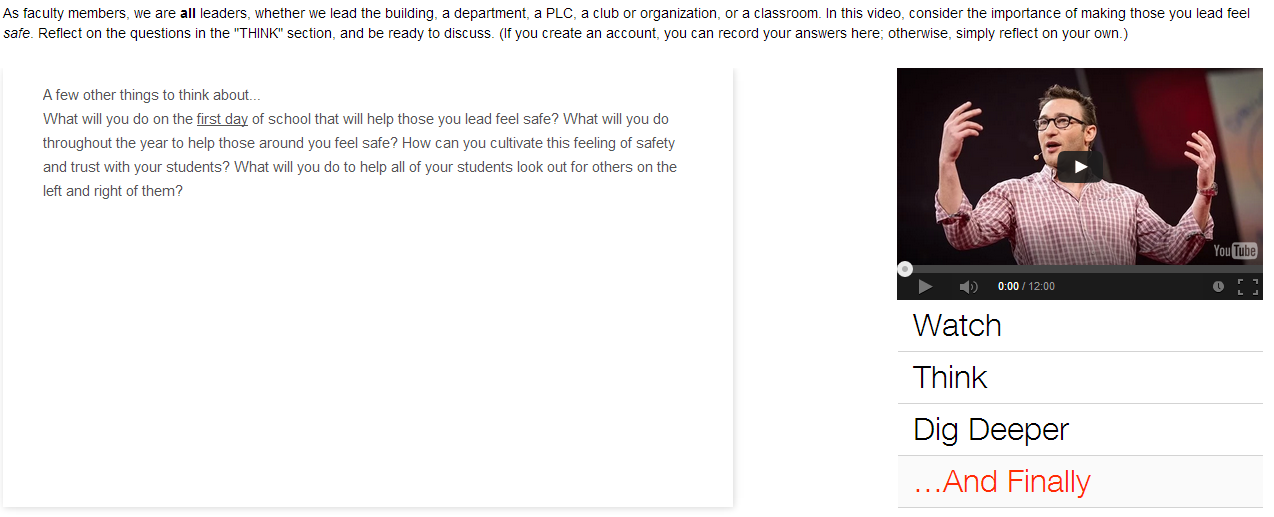
First, you find any YouTube or TED Talk video, and create an account on TEDEd.  Once you choose your video, the lesson creator for TEDEd allows you to write an "objective" and create multiple choice and short answer questions about the video.  For the multiple choice questions, you even add the exact time where the video refers to the answer, so if viewers answer incorrectly, the video returns to that location to help students find the correct answer.  (You may create up to 15 questions, plus you may edit and re-order the questions at any time.)  Students must create an account with TED to be able to respond on the site and receive feedback; perhaps I'll create a Google Form that mirrors the questions so that they may respond there...still thinking.


Next, you may add additional resources, links, and images that allow the viewers to "Dig Deeper."  For my students' lesson on grit, I found links to Duckworth's grit test, a video on growth/fixed mindset, and a link to Dweck's work on how to change your mindset.


There is also a place for discussion, if you would like to add that feature, but I'm asking my students respond on a protected Google doc instead.  You may add or delete any of these sections for your TEDEd lesson.

And last, there is the "...And Finally" section.  Here, you may type additional reflections, take-aways, and what happens next.  For our faculty's TEDEd, I plan to flip this video and ask that they view it before the first day of professional development.  We'll begin our discussions with the "...And Finally" reflections.  Over the past several years, we've discussed Simon Sinek's Start With WHY, and his latest TED talk is Why Good Leaders Make You Feel Safe.  My TEDEd lesson asks us to reflect how his ideas of leadership, safety and trust look in the school, departments, and in our classrooms.


I loved learning about the lesson possibilities on TEDEd, and for my purposes this morning, the features were fantastic.  I can't wait to try these videos with our students and teachers.  Watching and reflecting on Angela Duckwork's talk may be part of my assignment on day #1!

My stack of reading continues to grow...

Share:

Made4Math - Digital Word Walls

I've really missed blogging and participating in #Made4Math, so after reading so many wonderful ideas over the past few months, I'm happy to be able to contribute to this week's collection.


Several years ago, we jumped on the "Word Wall" bandwagon, and teachers in all content areas learned the importance of vocabulary building, displaying vocabulary, and actively using their word walls.

Had to throw in an English teacher's example, too! 

Fast forward several years, and we're now in the digital age.  One of our junior high teachers, Omar P., who teaches at a technology magnet school and who has created this fantastic informational site, led us into the 21st century with his idea of digital word walls.  (His site includes informational videos, app reviews, and presentations, and his work is helping our entire district!)

At a recent staff development, Omar shared his ideas and how he used his digital word walls, so I created one for my class and wanted to share this great strategy.

Instead of posting words/pictures/diagrams on a bulletin board, the same types of images are stored in folders on your iPad or computer.  Using the slideshow option, you can project the pictures as students are entering the classroom, while they're working on an activity, or during tutoring time.

I created my pictures using screen shots of handwritten notes, of Keynote slides, and of slides using a presentation app called Haiku deck.  I also plan to take pictures of the students' work and add those slides to the folder.  Omar has more iPads in his classroom, so he has had students create word walls using Keynote.  You could also find free images online for additional pictures or backgrounds.
Made using the Haiku deck app


I also included a few slides that were quotes or reminders about strategies for working these problems.


Our test is this week, so for the next few days, I plan to have these slides showing as the students enter the room.  (If you want to see the other slides, my trig identity folder is here.  I just noticed that the Haiku deck app provided a background that misspelled "adjacent," so I'm not too happy about that, but other than that, the slides were pretty and the app was easy to use.)  

I love the fact that these folders of pictures can be saved, changed, and shared.  Teachers and students could collaborate on unit folders, share photos, and update the words/images each year.  As we're reviewing for finals and preparing for other tests, we'll have these folders of pictures easily available and ready to go.  If you would like more information, Omar has a video explanation here about how he has used the digital word wall in his classroom.

Do you have a word wall in your classroom?  How do you use your word wall?  How do you reinforce vocabulary in your classroom?
Share: